
Tesla trip history export
Tesla trip history export: turn reviewed drives into CSV and PDF records
A useful driving record is more than a mileage total. DriveQuery is being built to turn reviewed Tesla journeys into structured CSV and readable PDF exports for mileage analysis, expenses, business reporting and your own archive.
What a useful Tesla trip export should preserve
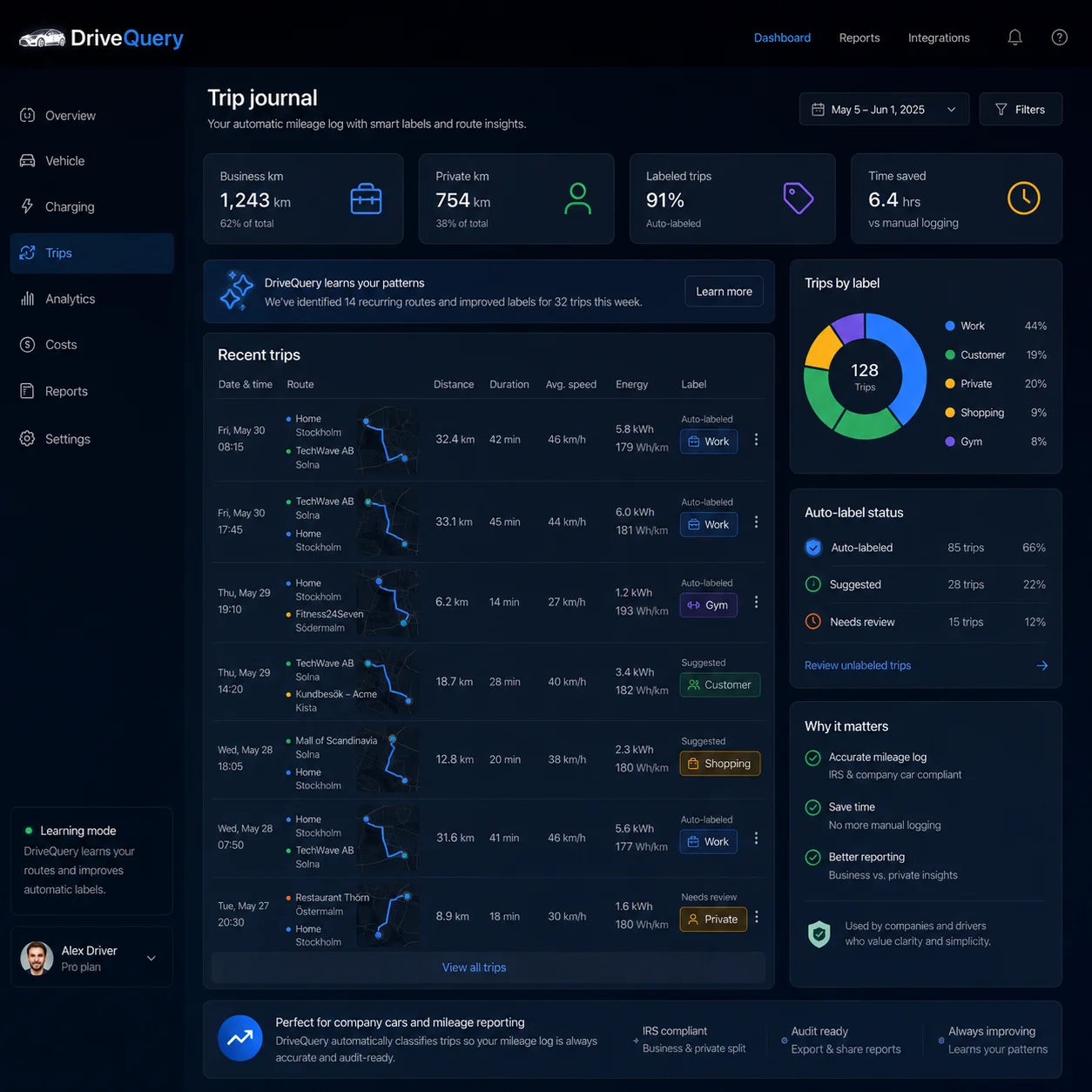
One trip per row
Keep each completed journey as a separate record with date, distance and the context needed to recognise it later.
A readable period report
Create a PDF for a week, month or custom period after you have reviewed the journeys that belong in it.
Keep classifications
Carry business/private classifications into the export instead of reclassifying every journey in a spreadsheet.
Keep your labels
Include useful destination labels and notes so the exported mileage still makes sense months later.
Quick answer: a Tesla trip export should preserve the journeys behind the mileage total
If you only need to know how far your Tesla has travelled, the odometer is enough. If you need to explain which journeys created that mileage, you need a different kind of record: one row per completed drive, with enough context to review, classify and reuse it later.
Tesla currently documents its in-car Trips view as showing distance, duration and energy use for the current drive, since the last charge and for user-added trip counters. That is useful vehicle information, but it is not the same thing as a ready-made chronological export of every journey for a month. A dedicated trip journal fills that gap by recording individual drives as they happen and then letting you export the reviewed period.
The value of an export is that the record still makes sense after it leaves DriveQuery.
What should a useful Tesla trip history export contain?
The exact fields depend on whether you are analysing your own driving, preparing an expense claim or keeping a business mileage record. At minimum, the export should make every row traceable to a real journey.
| Field | Why it matters | Typical use |
|---|---|---|
| Date and start time | Places the journey in the correct day and reporting period. | Monthly reports, expenses, audit trail |
| End time / duration | Helps distinguish separate journeys and check unusual records. | Trip review, exception checking |
| Origin | Explains where the journey started. | Business context, route review |
| Destination | Explains where the journey finished. | Business context, recurring places |
| Distance | Provides the mileage figure that rolls into period totals. | Mileage analysis, reimbursement |
| Business / private classification | Keeps the reviewed purpose with the journey. | Business reporting, mileage claims |
| Custom label or note | Adds useful context such as a customer, office, site or gym. | Review, recurring destinations |
| Odometer context, when available | Helps check that the sequence of journeys forms a sensible continuous record. | Quality control, audit trail |
Route geometry can also be useful, but a trip record should not become invalid simply because a GPS trace has a gap. For many reporting tasks, a trustworthy start, finish, distance and classification are more important than drawing every metre of the route on a map.
CSV and PDF solve different problems
CSV: work with the data
A CSV is the better format when you want to filter trips, calculate totals, combine the data with expenses or import it into another system. One journey per row keeps the structure simple.
PDF: read and share the period
A PDF is better when a human needs a clean report: the selected period, totals and the journeys that make up those totals, without opening a spreadsheet.
For many users the best workflow is not to choose one forever. Review the journeys once, then export the same approved period as CSV for analysis and PDF for a readable record.
A worked example: five trips become one clean period export
Imagine a Tesla makes the following journeys on one working day. The values below are illustrative.
| Time | From → to | Distance | Class | Label |
|---|---|---|---|---|
| 07:42 | Home area → Office | 18.6 mi | Private | Commute |
| 10:15 | Office → Customer site | 12.1 mi | Business | Customer A |
| 12:08 | Customer site → Office | 11.9 mi | Business | Customer A |
| 16:35 | Office → Supplier | 7.4 mi | Business | Supplier |
| 17:20 | Supplier → Home area | 20.3 mi | Private | Evening |
The daily total is 70.3 miles, but that number alone is not very useful for business reporting. The reviewed export shows that 31.4 miles were classified as business and, crucially, preserves the individual journeys behind the total. If a classification changes later, the period can be corrected without rewriting an entire mileage spreadsheet.
Review first, export second
A common weakness in automatic logs is treating raw data as final data. Real driving is messier. You may stop briefly, move the car in a car park, lose GPS coverage in a tunnel or realise later that a recurring destination should have a better label.
DriveQuery is being built around a simple principle: capture automatically, review exceptions, then export the clean period. That means the export should reflect the current reviewed state rather than force you to fix obvious issues again after opening the CSV.
- Capture the completed journey. Keep the time, distance and available location context.
- Group the data into a real-world trip. Avoid turning every tiny movement into a separate business record.
- Review exceptions. Check missing context, unusual distance or a journey boundary that looks wrong.
- Classify the journey. Mark business/private and add your own useful label when needed.
- Select the reporting period. Week, month, tax period or another custom range.
- Export the reviewed record. Use CSV, PDF or both depending on what happens next.
Do not let automatic Home and Work guesses corrupt the export
A label should help you recognise a place; it should not silently decide why you drove there. A location can be an office one day, a customer site another day or simply somewhere you parked. That is why DriveQuery favours addresses and user-defined labels rather than relying on predefined home/work labels to decide the business purpose.
You can label recurring places with names that mean something to you — for example “HQ”, “Customer A”, “Warehouse” or “Gym” — while keeping the underlying journey separate from its business/private classification. This makes the exported record easier to understand and reduces the risk that a familiar location automatically creates the wrong purpose.
See Tesla location history for the difference between live location, route context and a completed trip record.
Can Tesla export your historical trips directly?
Tesla lets account holders in supported locations request a copy of certain data associated with their Tesla Account. Tesla says that a data request may include vehicle usage information and Supercharging history, among other account data. This can be useful when you need to understand what Tesla has retained.
However, Tesla also states that some information may not be stored, may only have been retained for a short time or may not be part of a standard data request. A Tesla privacy export should therefore not be treated as a guaranteed substitute for a trip journal that was recording each drive at the time.
If you are trying to recover a journey that is already missing, read Tesla trip history missing. For future reporting, continuous capture is more reliable than hoping an old route can be reconstructed later.
Why continuous vehicle data makes a better trip journal
Tesla's Fleet API provides authorised access to live vehicle data, and Fleet Telemetry can stream vehicle signals directly to a service. Tesla documents categories that include driving and location data, with vehicle location controlled through its own permission scope. This makes it possible for a connected service to build a journey record while the relevant evidence exists rather than ask the driver to remember every trip later.
The practical benefit is not “more telemetry for the sake of telemetry”. It is less manual work: detect that the car drove, preserve the completed journey, and ask the user to review only the parts that need your input.
DriveQuery should also be transparent about limits. If the service was not connected, a permission was unavailable or essential data was never received, the export should not invent a precise-looking historic journey.
Business mileage: export the evidence, not just the answer
If you use your Tesla for work, a monthly business-mileage total may eventually be copied into an expense or accounting process. But a number such as “412 business miles” is much easier to trust when the underlying journeys are still available.
A useful export lets you answer:
- Which trips make up the total?
- When did each trip happen?
- Where did it start and finish?
- What was the distance?
- Why was it marked business rather than private?
- Was the journey reviewed before the report was produced?
For the wider workflow, see Tesla mileage tracker for business, Tesla mileage log and Tesla business mileage allowance.
How to check an export before you rely on it
Automatic capture removes a lot of typing, but a few checks make a period export much stronger.
- Check the date range. Make sure the first and last day are what you intended.
- Scan unclassified trips. Do not let blank purpose fields disappear into the total.
- Look for unusual distances. A very short or very long journey can reveal a segmentation issue.
- Check continuity. Where odometer context is available, totals should form a plausible sequence.
- Review recurring labels. Make sure a renamed customer or office is consistent across the period.
- Keep reconstructed entries distinguishable. If you manually add context to a historic gap, do not present it as if it came from telemetry.
This is especially useful when a report will leave your own hands. A clean export should be understandable to someone who was not sitting in the car.
What DriveQuery is being built to export
The trip export is still a planned DriveQuery feature, so the final fields and layout may change. The intended direction is clear: keep the record simple enough to use in a spreadsheet, but rich enough that a journey does not lose its meaning when it leaves the app.
For analysis
Structured CSV with one journey per row, period-friendly dates, distances, classifications and useful context.
For reporting
A readable PDF that summarises the selected period and lists the journeys behind the totals.
For traceability
Keep user labels, review state and available journey context instead of exporting only a final mileage number.
For correction
Review the source trip in DriveQuery first, then regenerate the export rather than patching every downstream spreadsheet by hand.
Frequently asked questions
Can I export Tesla trip history from the Tesla app?
Tesla provides trip information in the vehicle and lets account holders request copies of certain Tesla Account data, but that is not the same as a documented recurring CSV/PDF journal of every completed drive. DriveQuery is being built specifically around capturing individual journeys and exporting the reviewed record.
What is the best format for a Tesla mileage export?
CSV is best for calculations, filtering and importing into other tools. PDF is better for a readable period report. If the source journeys have already been reviewed, using both formats can serve different downstream needs without maintaining two separate logs.
Should every GPS point be included in the CSV?
Usually not. For mileage reporting, one row per completed journey is easier to work with. Start, finish, distance, purpose and useful context are normally more important than thousands of route coordinates. Route detail can remain available separately when it is useful.
Can I export business trips only?
Yes. Once journeys have been reviewed, you can filter the selected period to business journeys or include both business and private trips with the classification visible. The final DriveQuery export options are still in development.
Can an export recover trips from before I connected DriveQuery?
No reliable service should claim that automatically. Tesla may retain some vehicle usage information that can be requested through its privacy process, but Tesla also says some data may not be stored or may only be retained briefly. DriveQuery can provide verified history from the data it actually captured.
Why keep odometer context if each trip already has a distance?
Odometer continuity is a useful quality check. It can help reveal a missing journey, a duplicated segment or an implausible distance without replacing the trip's own measured distance.
Is a DriveQuery export an official tax document?
It is intended to provide a structured driving record, not legal or tax certification. The documentation required for mileage reimbursement or tax reporting depends on the rules that apply to you, your employer and your country.
What happens if I correct a trip after exporting it?
The cleaner workflow is to correct the source journey in DriveQuery and generate a new export for the period. That keeps the app record and the exported report aligned instead of creating multiple conflicting versions in spreadsheets.
Related DriveQuery guides
- Tesla trip history
- Tesla trip history missing
- Tesla location history
- Tesla mileage log
- Tesla mileage tracker for business
Sources: Tesla Model 3 Owner's Manual – Trip Information; Tesla Support – Obtain a Copy of the Data Associated With Your Tesla Account; Tesla Fleet API – Fleet Telemetry; Tesla Fleet API – permission scopes.
Take reviewed Tesla trips with you — not just the mileage total.
Join the waitlist and help shape the CSV and PDF exports you would actually use.